> ## Documentation Index
> Fetch the complete documentation index at: https://docs.tinykit.studio/llms.txt
> Use this file to discover all available pages before exploring further.
# Content Fields
> CMS-like editable text for non-developers
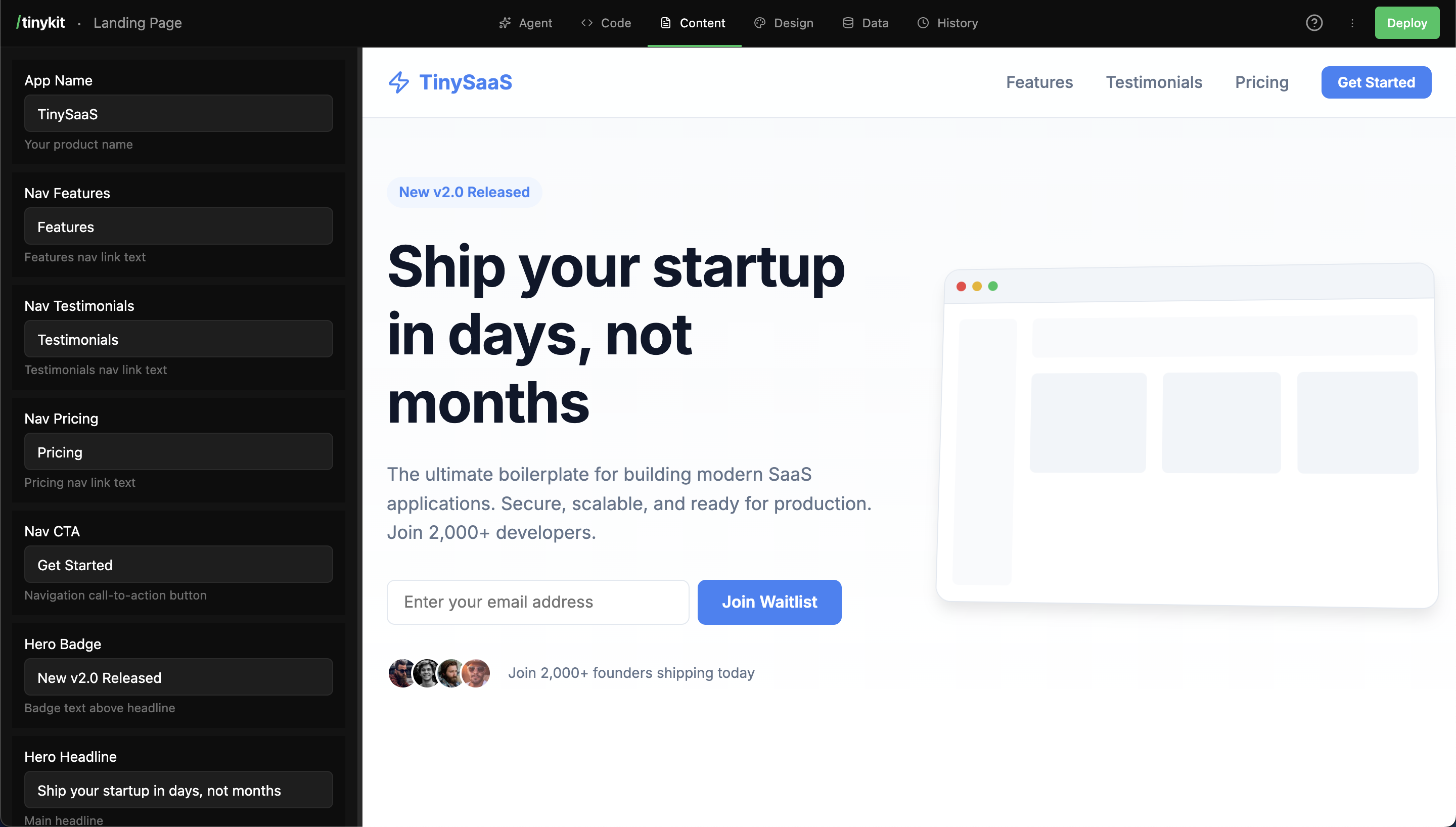
Content fields let non-technical users edit text without touching code. Headlines, descriptions, button labels—anything that might need updating can be a content field.
## How It Works
1. The AI (or you) creates a content field with a name and value
2. The field appears in the **Content tab** with an editable input
3. Your code references the field via `import content from '$content'`
4. When someone edits the field, the preview updates instantly
```
Content Tab Your Code
┌─────────────────────┐ ┌─────────────────────┐
│ Hero Title │ │
│
└─────────────────────┘ └─────────────────────┘
```
***
## Using Content Fields
### In Your Code
```svelte theme={null}
{content.hero_title}
{content.hero_description}
```
### Name Conversion
Field names are converted to snake\_case:
| Field Name | Access As |
| ---------------- | -------------------------- |
| Hero Title | `content.hero_title` |
| CTA Button Text | `content.cta_button_text` |
| Footer Copyright | `content.footer_copyright` |
| App Name | `content.app_name` |
When you hover over a field in the Content tab, you'll see the exact key to use in your code.
### Default Values
Always provide fallbacks for robustness:
```svelte theme={null}
{content.hero_title || 'Welcome'}
{content.tagline || 'Your default tagline here'}
```
***
## Field Types
| Type | Input | Best For |
| ------------ | ---------------- | --------------------------- |
| **text** | Single line | Titles, labels, short text |
| **textarea** | Multi-line | Descriptions, paragraphs |
| **number** | Numeric input | Prices, quantities, limits |
| **boolean** | Toggle switch | Feature flags, visibility |
| **image** | Image upload | Logos, photos, icons |
| **markdown** | Rich text editor | Formatted content, articles |
### Text Fields
Single line text for titles, labels, and short content:
```svelte theme={null}
{content.page_title}
```
### Textarea Fields
Multi-line text for longer content:
```svelte theme={null}
{content.about_text}
{content.author_bio}
```
### Number Fields
Numeric values that can be used in calculations:
```svelte theme={null}
{/if}
{#if content.enable_dark_mode}
...
{/if}
```
### Image Fields
Image uploads with automatic URL handling:
```svelte theme={null}
```
Image fields automatically convert uploaded filenames to full asset URLs.
### Markdown Fields
Rich text content with markdown formatting:
```svelte theme={null}
{@html content.article_body}
```
Markdown fields are rendered as HTML. Only use `{@html}` with trusted content to avoid XSS risks.
***
## Creating Content Fields
### Via the AI
Ask the AI to create content fields:
```
Add a hero section with a title and description that I can edit without code
```
The AI will:
1. Create content fields for the text
2. Reference them in the code
3. Fields appear in the Content tab
### Via the Content Tab
1. Click **Add Content Field** at the bottom of the Content tab
2. Enter a name (e.g., "Hero Title")
3. Choose a type
4. Set an initial value
5. Optionally add a description
6. Click **Add Field**
### In Code (Advanced)
If you're editing code manually, first use the text in your code:
```svelte theme={null}
{content.new_headline}
```
Then ask the AI to create the matching field, or add it in the Content tab.
***
## Best Practices
### Use Descriptive Names
* Hero Title
* Navigation Home Link
* Footer Copyright Year
* Empty Cart Message
* Title
* Text 1
* String
* Foo
### Group Related Content
Use consistent prefixes for related fields:
```
hero_title
hero_description
hero_cta_text
footer_copyright
footer_company_name
footer_email
```
### Provide Context with Descriptions
When creating fields, add descriptions to help editors:
```
Name: Hero Title
Description: Main headline on the home page (keep under 50 characters)
Name: CTA Button
Description: Call-to-action button text (e.g., "Get Started", "Try Free")
```
### Handle Missing Values
Always provide fallbacks in case a field hasn't been created yet:
```svelte theme={null}
{/if}
```
### Lists from JSON
```svelte theme={null}
```
### Dynamic Placeholders
```svelte theme={null}
```
### Content with Design
Combine content fields with design fields:
```svelte theme={null}
{content.hero_title}
```
***
## Sharing the Content Tab
Content fields are designed for non-developers to edit. You can share access to just the Content tab without exposing the full builder:
A dedicated content-only editing view is planned for a future release. For now, editors access the full builder but only need to use the Content tab.
Consider creating a guide for your content editors:
1. Log in at `yourapp.com/tinykit`
2. Click the **Content** tab
3. Edit values and see changes in the preview
4. Changes save automatically
***
## FAQ
Not directly in the UI. Delete the old field and create a new one with the correct name. Remember to update your code to use the new key.
The code will show `undefined` or your fallback value. Always use fallbacks like `{content.title || 'Default'}`.
Content fields are plain text by default. For HTML, use `{@html content.rich_text}`, but be careful with user-provided content (XSS risk).
tinykit doesn't enforce required fields. Use fallback values in your code to handle missing content gracefully.
 ## How It Works
1. The AI (or you) creates a content field with a name and value
2. The field appears in the **Content tab** with an editable input
3. Your code references the field via `import content from '$content'`
4. When someone edits the field, the preview updates instantly
```
Content Tab Your Code
┌─────────────────────┐ ┌─────────────────────┐
│ Hero Title │ │
## How It Works
1. The AI (or you) creates a content field with a name and value
2. The field appears in the **Content tab** with an editable input
3. Your code references the field via `import content from '$content'`
4. When someone edits the field, the preview updates instantly
```
Content Tab Your Code
┌─────────────────────┐ ┌─────────────────────┐
│ Hero Title │ │