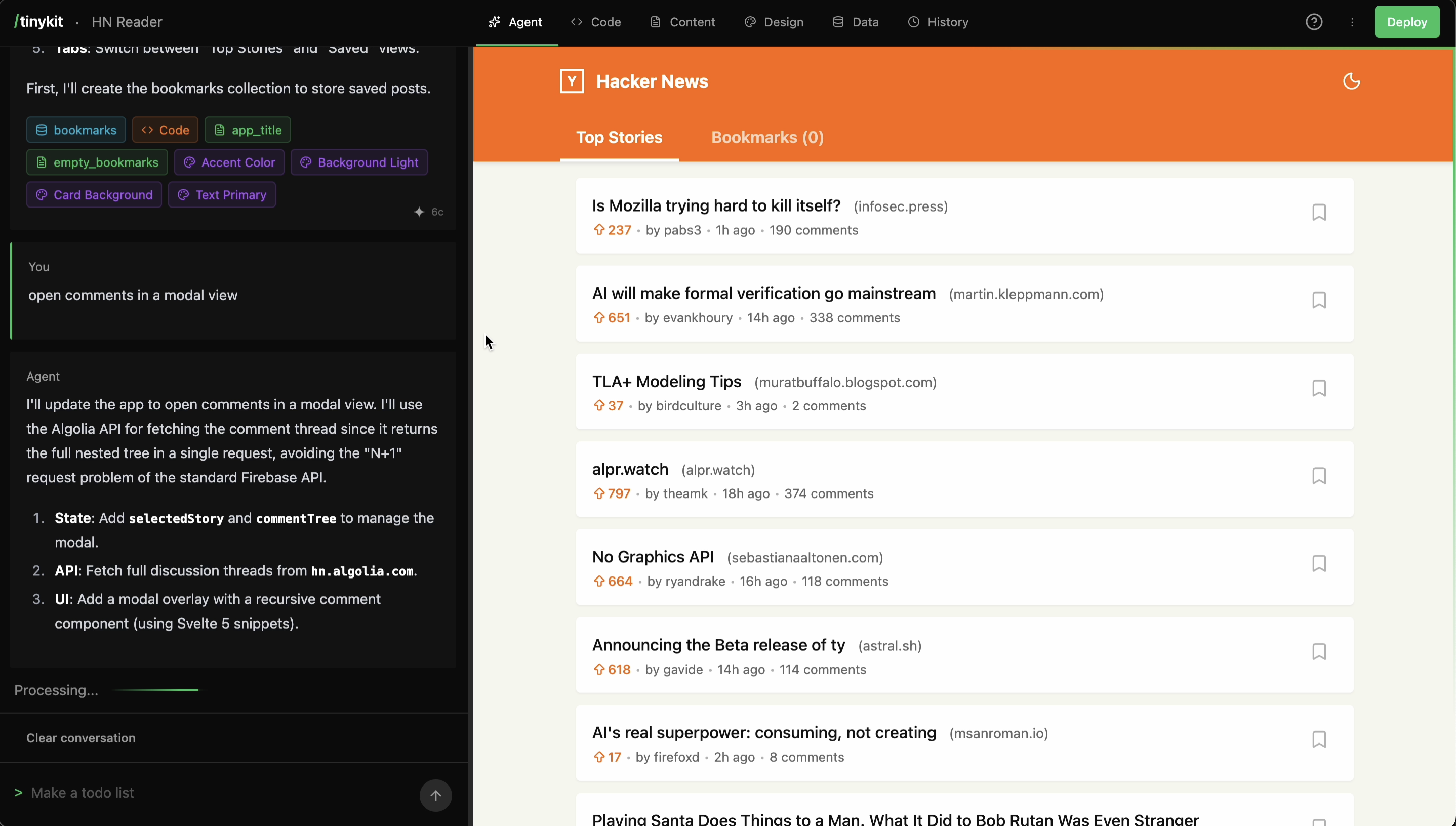
The AI Agent is your primary interface for building apps in tinykit. Chat naturally, and it writes code, creates database collections, and sets up your design system.

How It Works

When you send a message, the AI:
  1. Sees your current App.svelte code
  2. Sees existing design and content fields
  3. Generates a response with tool calls
  4. Executes tools to update your project
  5. Preview refreshes automatically
You: "Add a dark mode toggle"


AI sees current code + fields


AI calls write_code, create_design_field


Your app updates instantly

Writing Good Prompts

Be Specific

Vague

“Make it look better”

Specific

“Add more padding to the cards and use a softer shadow”

Vague

“Add a form”

Specific

“Add a contact form with name, email, and message fields. Show a success message after submission.”

Start Simple, Then Iterate

Don’t try to describe your entire app upfront. Build incrementally:
1. "Create a simple todo list"
2. "Add the ability to mark todos as complete"
3. "Add categories for todos"
4. "Add a filter to show only incomplete todos"

Describe Behavior, Not Implementation

Implementation-focused

“Use a $state array and map over it”

Behavior-focused

“Show a list of items that updates when I add new ones”
The AI knows Svelte 5 patterns—let it choose the implementation.

Example Prompts

Starting a New App

Create a recipe collection app. I want to:
- Add recipes with a title, ingredients list, and instructions
- Search recipes by name
- Mark favorites

Adding Features

Add a share button that copies a link to the recipe
Add dark mode that remembers the user's preference
Show a loading spinner while recipes are being fetched

Fixing Issues

The delete button isn't working - clicking it does nothing
The layout breaks on mobile, cards should stack vertically

Styling

Make the cards have rounded corners and a subtle shadow
Use a blue color scheme instead of green

What the AI Can Do

The AI writes to a single App.svelte file using Svelte 5 with runes ($state, $derived, $effect). It uses semantic CSS classes, not Tailwind.
CSS variables for colors, fonts, spacing, shadows, and border radius. These appear in the Design tab where you can adjust them visually.Types: color, font, size, radius, shadow, text
Editable text values that appear in the Content tab. Perfect for headlines, descriptions, button labels—anything a non-developer might want to change.Types: text, textarea, number, boolean, json
Database tables stored in Pocketbase. The AI can create collections with initial data and wire up realtime subscriptions.
Set up connections to external APIs with custom headers and methods.
Store API keys and secrets server-side.

Available Tools

The AI has 10 tools it can use:
ToolPurpose
write_codeUpdate App.svelte
create_content_fieldAdd editable CMS text
create_design_fieldAdd CSS variable
create_env_varAdd environment variable
create_endpointConfigure external API
create_data_fileCreate database collection
insert_recordsAdd records to collection
read_config_fieldRead a field value
update_config_fieldUpdate a field value
update_specUpdate project specification
When tools execute, you’ll see confirmation messages in the chat.

What the AI Can’t Do

The AI operates within tinykit’s architecture. It cannot:
  • Create multiple component files (single App.svelte only)
  • Use Tailwind or utility CSS classes
  • Access the filesystem directly
  • Make network requests during generation
  • Modify Pocketbase schema after creation
For complex apps that outgrow these constraints, consider exporting and continuing in a full framework.

Tips for Better Results

1. Give Context on First Message

If you have specific requirements, mention them upfront:
I'm building an internal tool for tracking inventory.
We use a dark theme. Items have SKU, name, quantity, and location.
Create the basic interface.

2. Reference What Exists

The AI can see your current code. Reference it:
In the header section, add a search box
Change the card background color to match the header

3. Ask for Explanations

If you want to understand the code:
Add pagination, and explain how it works

4. Request Mobile-First

The AI defaults to mobile-first responsive design, but you can be explicit:
Make sure this works well on phones - cards should stack vertically

5. Use the History Tab

Made a mistake? Every AI response creates a snapshot. Go to the History tab and restore a previous version.

Conversation Memory

The AI remembers your conversation within a session. You can:
  • Reference previous messages: “Actually, make that button blue instead”
  • Build on what was created: “Now add a delete confirmation modal”
  • Ask follow-ups: “Can you also add keyboard shortcuts?”
Conversation history is saved with your project and persists across sessions.

Custom Instructions

For project-wide guidance, add custom instructions in the project settings. These are included in every AI prompt:
This is a children's educational app.
- Use large, friendly fonts
- Bright, cheerful colors
- Simple language in all text
- Large touch targets for buttons

Common Patterns

Data with Realtime Updates

Create a list of tasks that updates in realtime when I add or complete them
The AI will set up:
  • A Pocketbase collection
  • Realtime subscription with $effect
  • CRUD operations (create, update, delete)

Content-Editable Text

Add a hero section with a title and description that I can edit without code
The AI will:
  • Create content fields
  • Reference them as content.hero_title
  • They appear in Content tab for editing

Design System

Set up a color scheme with primary, secondary, and background colors
The AI will:
  • Create design fields with CSS variables
  • Apply them throughout the code
  • They appear in Design tab with color pickers

External Data

Fetch and display the top stories from Hacker News
The AI will use the proxy API to fetch external data without CORS issues.

Troubleshooting

The AI sees the current saved state. If you edited code manually, make sure it’s saved before prompting.
Be more explicit about what’s wrong:
  • Bad: “That’s still broken”
  • Good: “The click handler is on the wrong element - it should be on the button, not the div”
Use the History tab to restore a working version, then try a simpler prompt.
This is intentional. tinykit uses semantic CSS classes for better readability and easier customization through the Design tab.

Alternative: No API Key

Already paying for Claude Pro or ChatGPT Plus? You can generate apps in those chat interfaces and import them into tinykit—no API key needed. See No API Key Required for the snapshot format and ready-to-use prompt templates.