

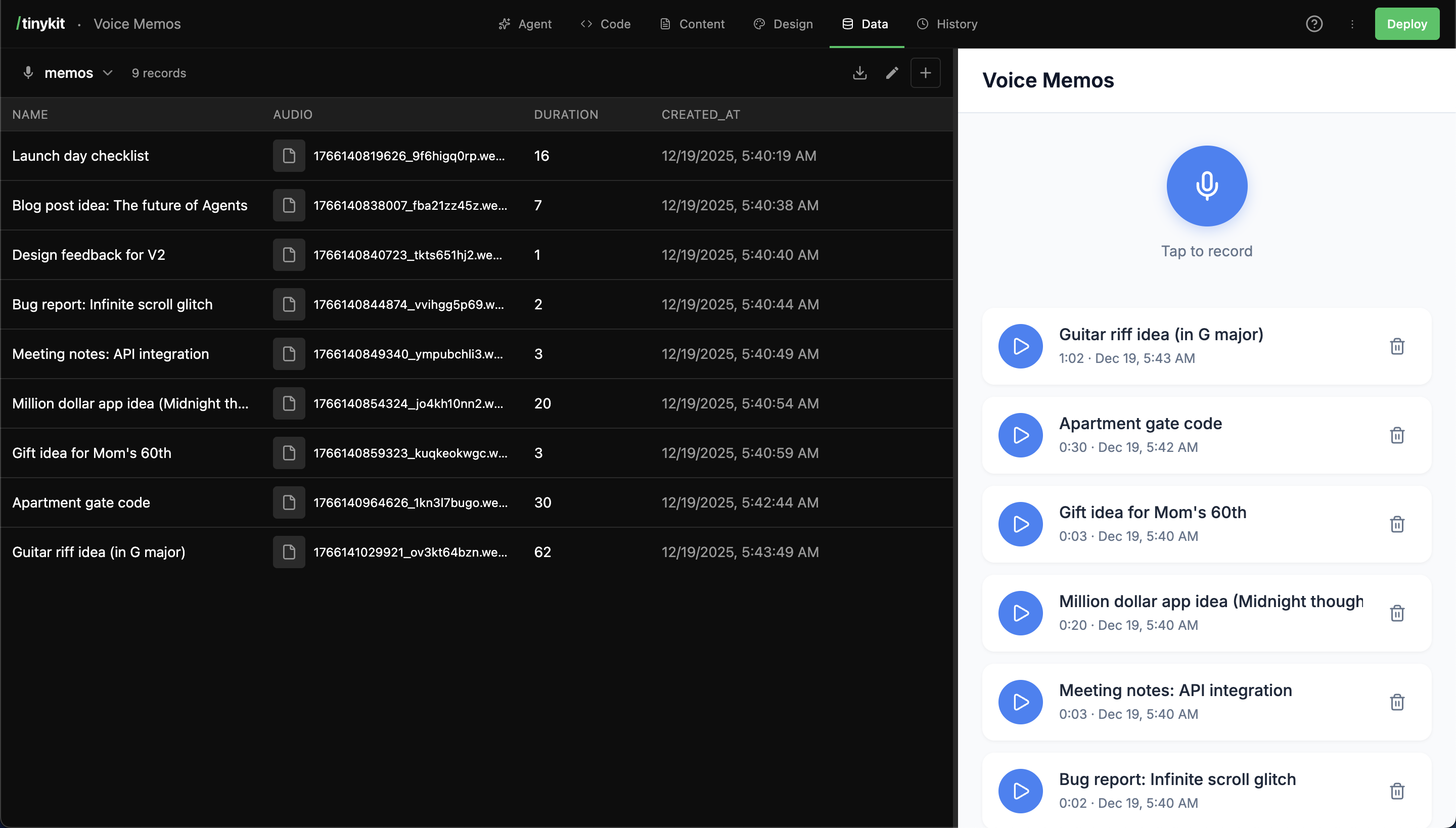
Data tab showing a voice memos collection
How It Works
- The AI (or you) creates a collection (like a database table)
- Collections store records (rows of data)
- Your code accesses data via
import data from '$data' - Changes sync in realtime across all connected clients
- The Data tab lets you browse and edit records visually
Data Tab Overview
The Data tab shows all your collections: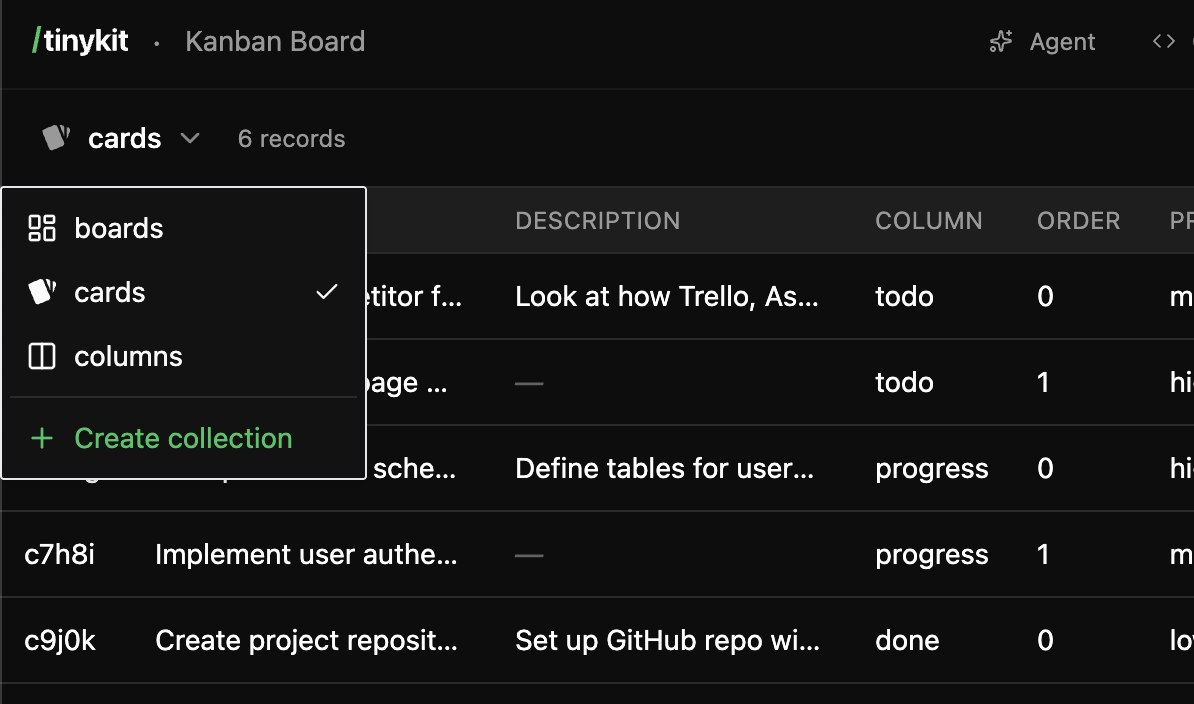
- View all collections on the left
- Browse records for selected collection
- Add, edit, and delete records
- Create new collections with custom schemas
- Export data as JSON
Accessing Data in Code
Import and Subscribe
CRUD Operations
Column Types
When creating collections, choose appropriate column types:Schema Inference
If you create records without defining a schema, tinykit infers types from the first record:Creating Collections
Via the AI
Ask the AI to create collections:- Create a
recipescollection - Define the schema (title, ingredients, instructions)
- Wire up the code to use the collection
Via the Data Tab
- Click Add Collection
- Enter a name (lowercase, underscores allowed)
- Add columns with names and types
- Click Create
Via Code
If you reference a collection that doesn’t exist, you can create it by adding the first record:Common Patterns
Loading State
Always show loading indicators:Filtering Data
Use$derived.by() for filtered views:
Sorting Data
Copy arrays before sorting (sort mutates):Form Submission
Optimistic Updates
For snappier UI, update state before the server responds:Record IDs
Every record has a uniqueid field:
- Auto-generated if not provided (5 alphanumeric characters)
- Can be manually set when creating records
- Used for updates and deletes
Timestamps
Records include automatic timestamps:Pocketbase Admin
For advanced database management, access Pocketbase directly:- Browse all collections
- Run SQL queries
- Manage authentication
- Configure collection rules
- Export/import data
tinykit stores app data in the
_tk_projects collection. Your app’s collections are stored within each project’s data field.Data Export
From the Data Tab
- Select a collection
- Click the download icon
- Get JSON export of all records
From Pocketbase Admin
Access/_pb/_ for full database export capabilities.
Limitations
No relations (yet): Collections are independent. For related data, store IDs manually:FAQ
Where is my data stored?
Where is my data stored?
Data is stored in Pocketbase’s SQLite database at
pocketbase/pb_data/. This persists across app restarts.Can I back up my data?
Can I back up my data?
Yes. The SQLite database is a single file. Copy
pocketbase/pb_data/data.db for a full backup. You can also export via the Pocketbase admin UI.Is there a record limit?
Is there a record limit?
SQLite handles millions of records efficiently. For very large datasets, consider pagination in your queries.
Can I use raw SQL?
Can I use raw SQL?
Access the Pocketbase admin at
/_pb/_ to run SQL queries directly.How do I delete a collection?
How do I delete a collection?
In the Data tab, select the collection and click the delete button. This removes all records permanently.
What happens if two users edit the same record?
What happens if two users edit the same record?
Last write wins. Pocketbase doesn’t have conflict resolution—the most recent update overwrites previous values.