

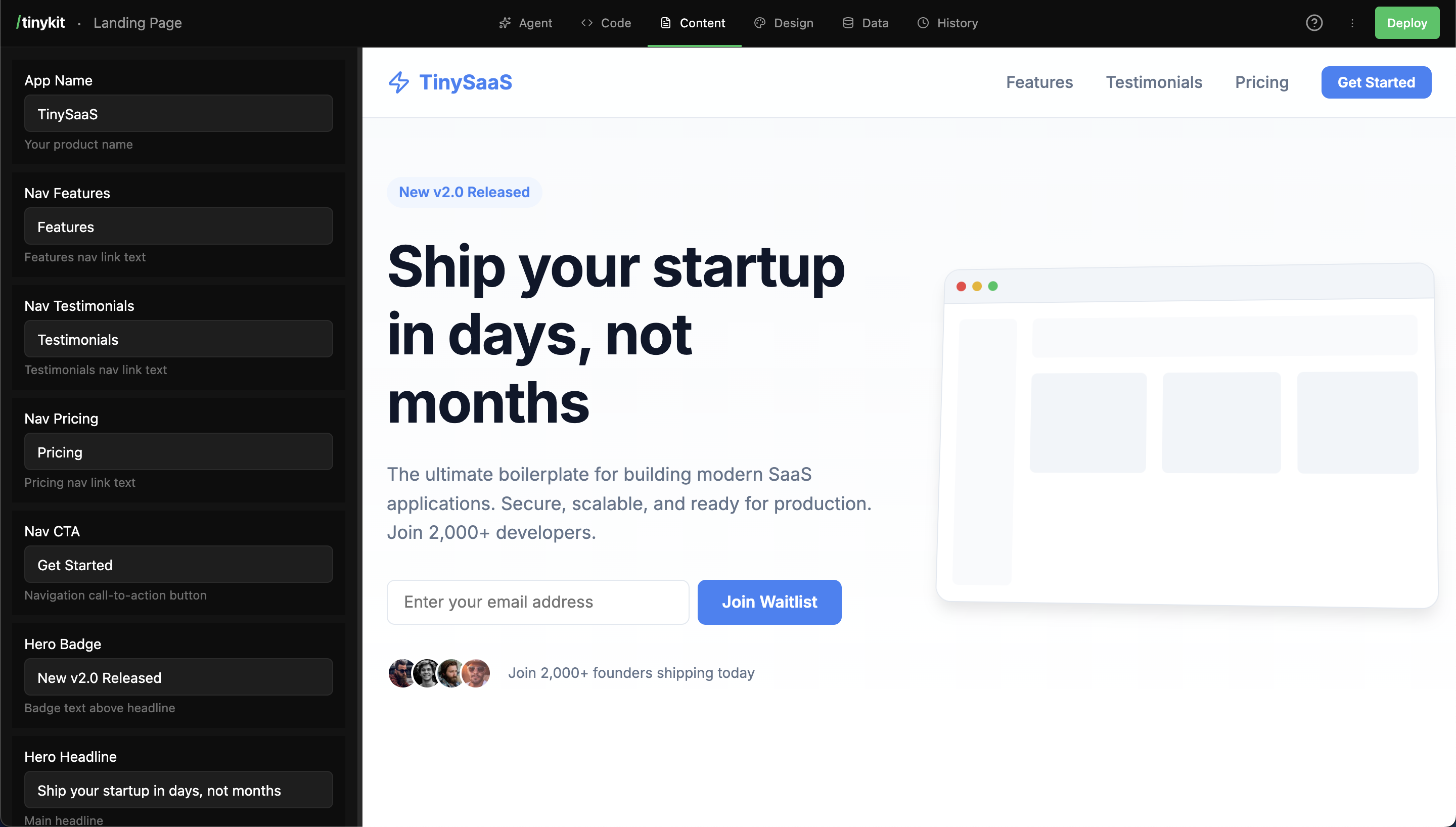
Content fields for a landing page
How It Works
- The AI (or you) creates a content field with a name and value
- The field appears in the Content tab with an editable input
- Your code references the field via
import content from '$content' - When someone edits the field, the preview updates instantly
Using Content Fields
In Your Code
Name Conversion
Field names are converted to snake_case:Default Values
Always provide fallbacks for robustness:Field Types
Text Fields
Single line text for titles, labels, and short content:Textarea Fields
Multi-line text for longer content:Number Fields
Numeric values that can be used in calculations:Boolean Fields
Toggle switches for on/off settings:Image Fields
Image uploads with automatic URL handling:Markdown Fields
Rich text content with markdown formatting:Creating Content Fields
Via the AI
Ask the AI to create content fields:- Create content fields for the text
- Reference them in the code
- Fields appear in the Content tab
Via the Content Tab
- Click Add Content Field at the bottom of the Content tab
- Enter a name (e.g., “Hero Title”)
- Choose a type
- Set an initial value
- Optionally add a description
- Click Add Field
In Code (Advanced)
If you’re editing code manually, first use the text in your code:Best Practices
Use Descriptive Names
Good
- Hero Title
- Navigation Home Link
- Footer Copyright Year
- Empty Cart Message
Avoid
- Title
- Text 1
- String
- Foo
Group Related Content
Use consistent prefixes for related fields:Provide Context with Descriptions
When creating fields, add descriptions to help editors:Handle Missing Values
Always provide fallbacks in case a field hasn’t been created yet:Common Patterns
Conditional Content
Lists from JSON
Dynamic Placeholders
Content with Design
Combine content fields with design fields:Sharing the Content Tab
Content fields are designed for non-developers to edit. You can share access to just the Content tab without exposing the full builder:A dedicated content-only editing view is planned for a future release. For now, editors access the full builder but only need to use the Content tab.
- Log in at
yourapp.com/tinykit - Click the Content tab
- Edit values and see changes in the preview
- Changes save automatically
FAQ
Can I rename a content field?
Can I rename a content field?
Not directly in the UI. Delete the old field and create a new one with the correct name. Remember to update your code to use the new key.
What happens if I delete a field that's used in code?
What happens if I delete a field that's used in code?
The code will show
undefined or your fallback value. Always use fallbacks like {content.title || 'Default'}.Can I use HTML in content fields?
Can I use HTML in content fields?
Content fields are plain text by default. For HTML, use
{@html content.rich_text}, but be careful with user-provided content (XSS risk).How do I make a field required?
How do I make a field required?
tinykit doesn’t enforce required fields. Use fallback values in your code to handle missing content gracefully.